


With the Microsoft Teams Notifications for SugarCRM, companies can elevate their communication to a new level. SugarCRM process controlled automated notifications and targeted messages sent directly into Microsoft Teams make it easy to share critical information quickly and accurately across teams.
User Guide
KINAMU Business Solutions GmbH
Talpagasse 1A | A-1230 Wien
www.kinamu.com | office@kinamu.com | Tel: +43 1 306 20-0
KINAMU Teams Notification Addon
for the integration of Microsoft Teams into Sugar processes
Vienna, April 2025
Version 1.0
Modules Overview
Notification Templates
The Notification Templates module allows the user to create message or card templates which are used to generate customized MS Teams notifications. There are 3 main types of notifications:
- Simple, HTML-formattable text messages
- Messages based on adaptive cards
- Messages based on adaptive cards enhanced with approval options
MS Teams Chats
The MS Teams Chats module gives an overview of the MS Teams chats created by the addon. A dedicated chat is created for each recipient and each module within it.
The recipient can be the person specified in the process or the person to whom the entity serving as the subject of the notification is assigned.
The chats are two-party, with the other participant being the Sugar system user on behalf of whom the message is sent.
MS Teams Approvals
This module gives an essential overview - including the response from the notification's recipient - of the approval processes triggered by notifications sent with approval options.
Basic Controls
The KINAMU Teams Notification addon uses the default Sugar UI. You can open the related modules by using the Sugar Navigation.
The nav-menu exposed Modules are MS Teams Notification Templates, MS Teams Chats and MS Teams Approvals.

|
MS Teams Notification Templates |
| MS Teams Chats | |
| MS Teams Approvals |
Modules Details
Notification Templates
Module-specific Fields
- Target Module (required): The SugarCRM module to which the business process - used as the template's usage context - is linked.
- Message Type (required): One of the three available Teams Notification template types: Message (a simple, HTML-formattable text message), Card (a message designed to be an adaptive card), Approval (an adaptive card-based massage, enhanced with customizable approval options)
- Template Body (required): The source code of the HTML message (in case of type 'Message') or the adaptive card (in case of types 'Card' or 'Approval').
- Notification Text (optional): A simple, HTML-formattable text message. Only applicable with 'Approval' template type. When filled out, a notification will also be sent to the assigned user -alongside the message with the approval options sent to the recipient(s) specified in the action - containing the text provided here.
Notification Templates List View
This view displays the actual list of notification templates.

Notification Templates Record View
By clicking on a notification template in list view, the record view of the actual item shows up.
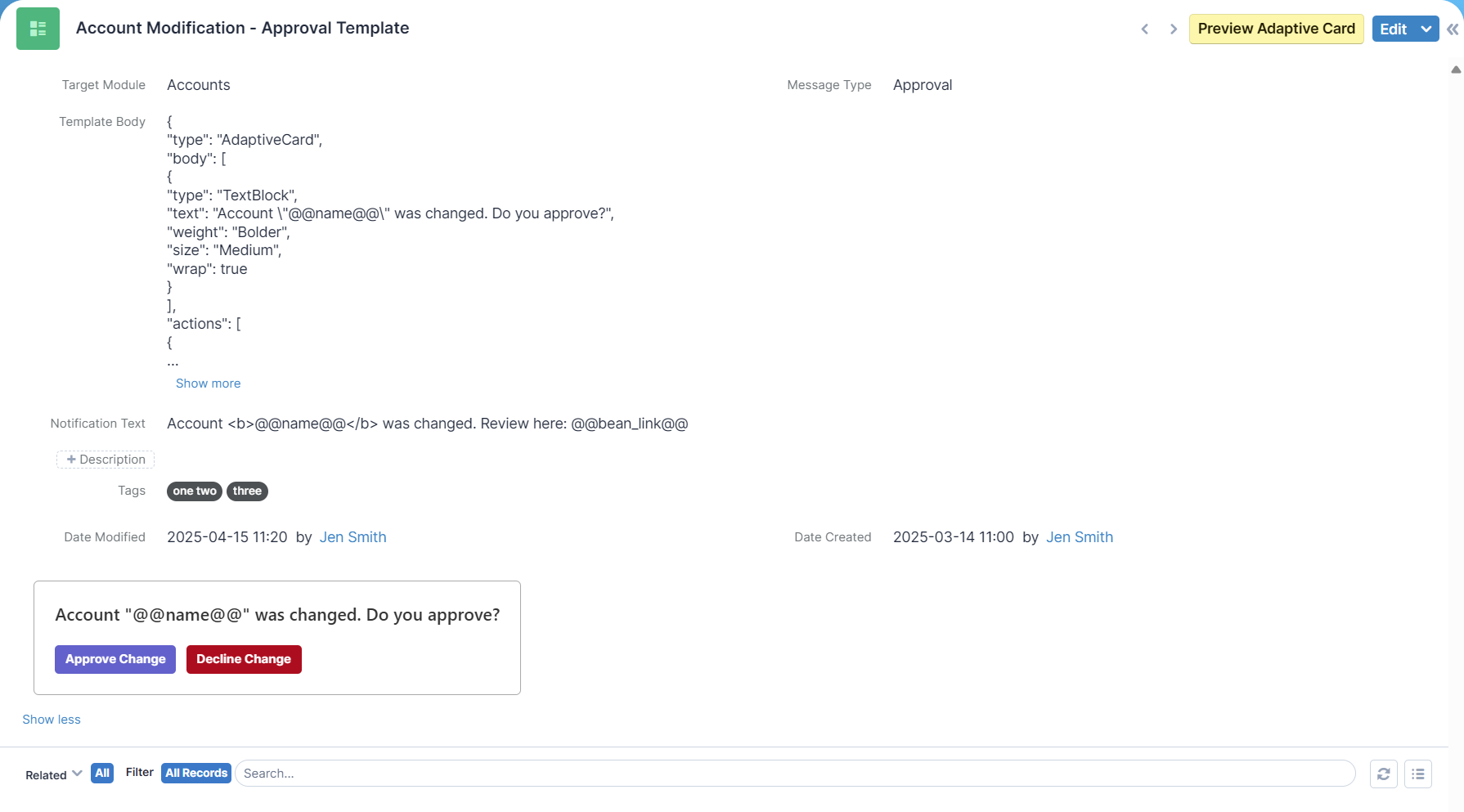
After filling the appropriate standard SugarCRM and specific notification template fields, click the "Save" button at the top to finish the notification template creation.
If not in edit mode, the top-right button ("Preview Adaptive Card") allows to preview the active card (applicable for types "Card" and "Approval"). If the adaptive card structure is invalid, an error message will be displayed.
MS Teams Chats
Module-specific Fields
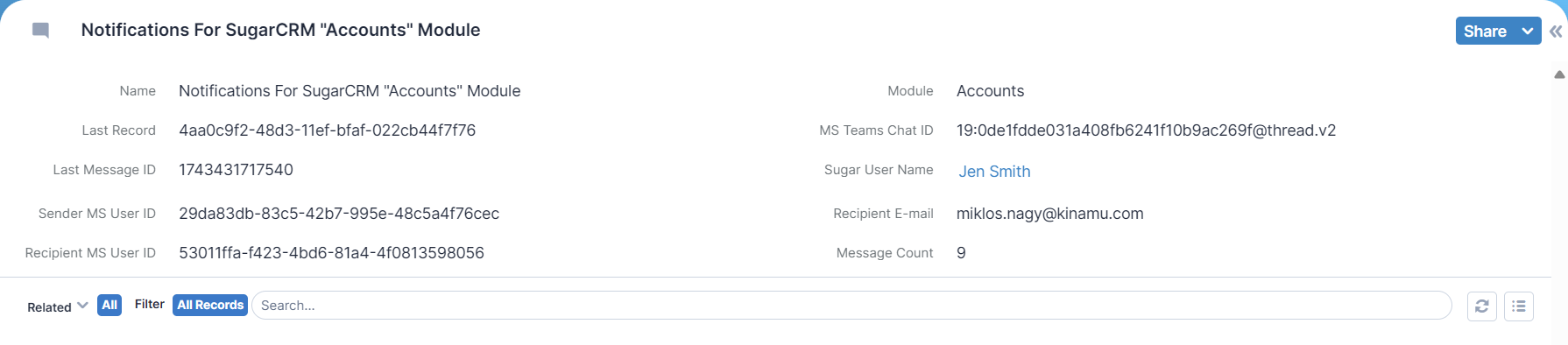
- Name: A descriptive name for the chat, given by the addon.
- Module: The SugarCRM module to which the chat is related.
- Last Record: The SugarCRM bean ID associated with the last message.
- MS Teams Chat ID: The Microsoft-assigned ID of the actual chat.
- Last Message ID: The Microsoft-assigned ID of the last message in the chat.
- Sugar User Name: The username of the SugarCRM user on whose behalf the message was sent.
- Sender MS User ID: The MS user ID of the SugarCRM user on whose behalf the message was sent.
- Recipient E-mail: The email address of the message recipient.
- Recipient MS User ID: The MS user ID of the message recipient.
- Message Count: The number of Teams messages sent in the actual chat.
These view is displayed only for preview purposes therefore all of the fields - and the records itself too - are read-only.
MS Teams Chats List View
This view displays the actual list of the Teams chats created by the addon.

MS Teams Chats Record View
By clicking on a Teams chat in list view, the record view of the actual item shows up.
MS Teams Approvals
Module-specific Fields
- Chat Name: A descriptive name for the chat, given by the addon.
- MS Teams Chat ID: The Microsoft-assigned ID of the actual chat.
- Module: The SugarCRM module to which the chat is related.
- Record: The SugarCRM bean ID associated with the actual message.
- Template Name: The notification template name associated to the actual message.
- Message ID: The Microsoft-assigned ID of the actual message in the chat.
- Response: The approval response sent by the message recipient.
These view is displayed only for preview purposes therefore all of the fields - and the records itself too - are read-only.
MS Teams Approvals List View
This view displays the actual list of the Teams approvals created by the addon.

MS Teams Approvals Record View
By clicking on a teams approval in list view, the record view of the actual item shows up.

Using SugarCRM Processes
Editing Sugar BPM Processes
Business processes that use the message-sending capabilities of the Teams Notifications addon can be administered in SugarCRM in the usual way, including the configurable parameters.

The module assigned to the business process also determines which notification templates can be associated with that process—only templates assigned to the same module as the one linked to the business process will be available for selection within that process.
Designing Sugar BPM Processes
The interface and operation of the business process designer also follow the usual method, extended with actions designed to send MS Teams Notifications.

Customizing Trigger Events
The administration of events that trigger notification message sending is carried out in the usual way in SugarCRM.

Customizing Actions
The addon extends the BPM process designer functionality with three special action types:
- MS Teams Send Message Event - for HTML formattable text-based notifications
- MS Teams Send Card Event - for notifications applying adaptive cards
- MS Teams Send Approval Event - for notifications applying adaptive cards with approval options
Each type has its own parameters, which must be configured within the properties of the action.

MS Teams Send Message Event
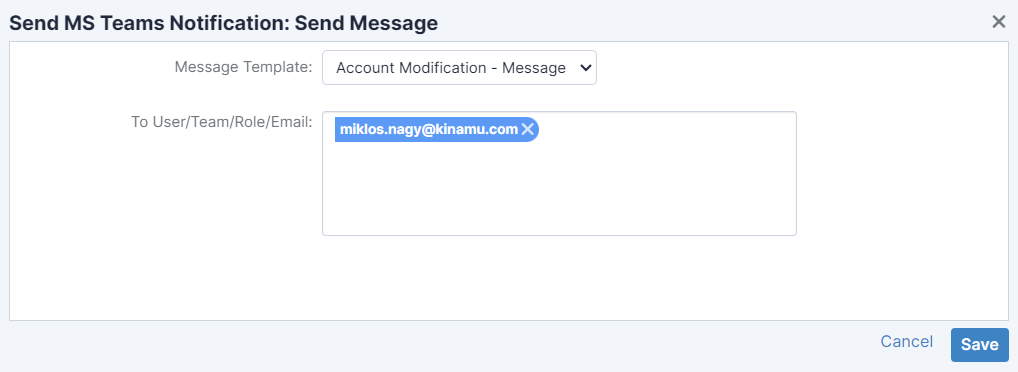
To send a HTML-formattable text notification message, the following parameters need to be configured:
- Message Template: The message template on which the notification message is based. You can select it from pre-filtered list, which contains templates with type "Message" and binded to the same module as the business process.
- Recipient List: The list of recipients who will receive the notification. You can enter one or more recipient, by either selecting a SugarCRM user / team role or by typing the recipient's e-mail address directly. In the case of a SugarCRM user recipient, it is important that their email address can be specified, and the email address defined in this way, or directly provided, must be associated with a Microsoft Teams account.
MS Teams Send Card Event
To send a notification message in adaptive card format, the following parameters need to be configured:
- Card Template: The message template on which the notification message is based. You can select it from pre-filtered list, which contains templates with type "Card" and binded to the same module as the business process.
- Recipient List: The list of recipients who will receive the notification. You can enter one or more recipient, by either selecting a SugarCRM user / team role or by typing the recipient's e-mail address directly. In the case of a SugarCRM user recipient, it is important that their email address can be specified, and the email address defined in this way, or directly provided, must be associated with a Microsoft Teams account.

MS Teams Send Approval Event
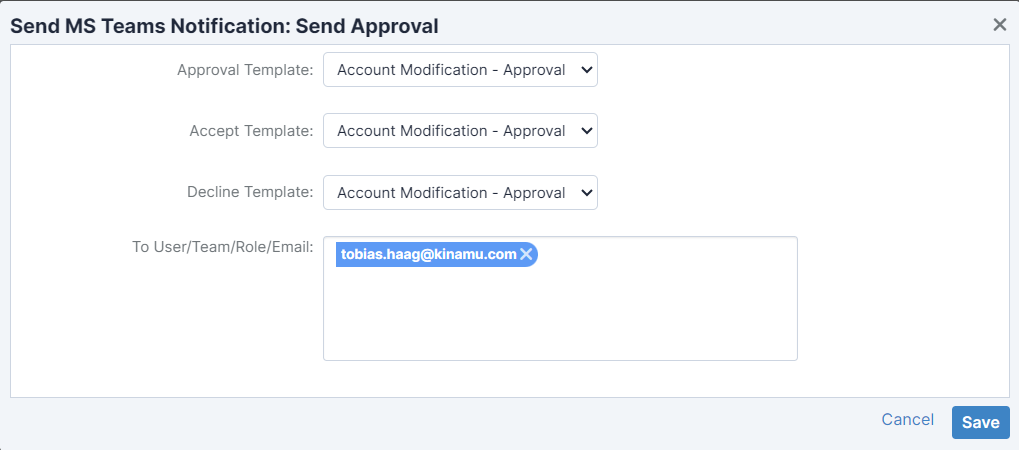
To send a notification message in adaptive card format, with additional approval options, the following parameters need to be configured:
- Approval Template: The message template on which the notification message is based. You can select it from pre-filtered list, which contains templates with type "Approval" and binded to the same module as the business process. In case a notification text is also available in this template, the assigned user connected to the subject (the target bean) of the business process event also gets a notification message.
- Accept Template: The message template used in case a positive ('accept') response arrived from the recipient replying the approval request. After the recipient's response is registered, a message created from this template will appear in place of the original notification message. You can select it from pre-filtered list, which contains templates with type "Card" and binded to the same module as the business process.
- Decline Template: The message template used in case a negative ('decline') response arrived from the recipient replying the approval request. After the recipient's response is registered, a message created from this template will appear in place of the original notification message. You can select it from pre-filtered list, which contains templates with type "Card" and binded to the same module as the business process.
- Recipient List: The list of recipients who will receive the notification. You can enter one or more recipient, by either selecting a SugarCRM user / team role or by typing the recipient's e-mail address directly. In the case of a SugarCRM user recipient, it is important that their email address can be specified, and the email address defined in this way, or directly provided, must be associated with a Microsoft Teams account.
Recipient Settings
The administration of the notification message's recipients is carried out in the usual way in SugarCRM.

 Saving Comment...


