Unlock the full power of your SugarCRM data with seamless integration to Microsoft Power BI Desktop. This connector enables you to extract, sync, and visualize CRM data in real time — helping you build interactive dashboards, advanced analytics, and actionable business insights without manual effort.
Whether you want to analyze Accounts, Contacts, Leads, Opportunities, Cases, or Custom Modules, this integration provides a fast, secure, and hassle-free way to turn your SugarCRM records into meaningful reports.
Installation Guide
Installing the Add-on
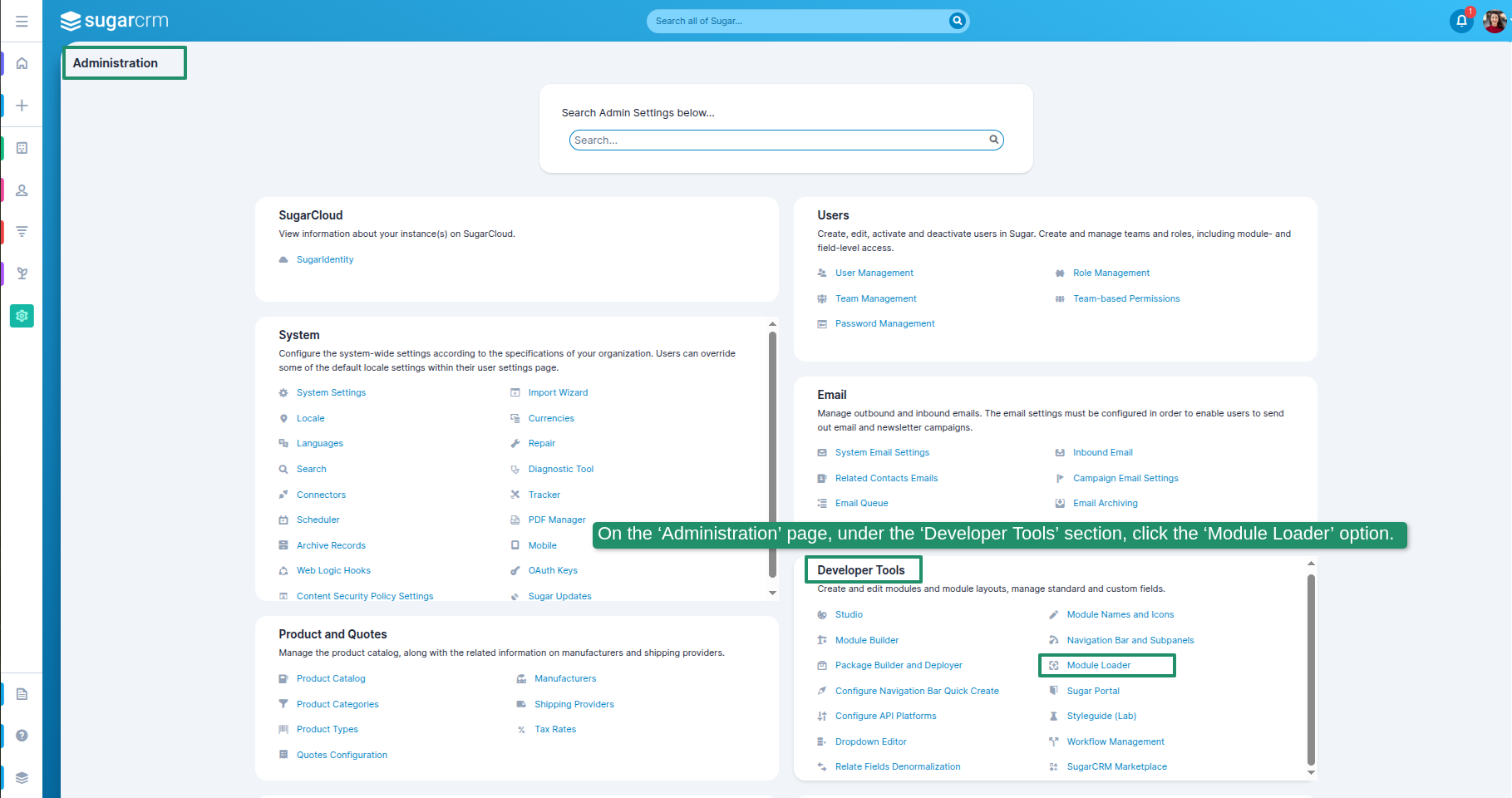
1. On the ‘Administration’ page, under the ‘Developer Tools’ section, click the ‘Module Loader’ option.
2. Choose a file, and then click on the Upload button.
3. The "SugarCRM Power BI Desktop Integration" module was successfully imported. Then, go to Settings, navigate to the SugarCRM Power BI Desktop Integration Configuration section, and click on the License Configuration option.
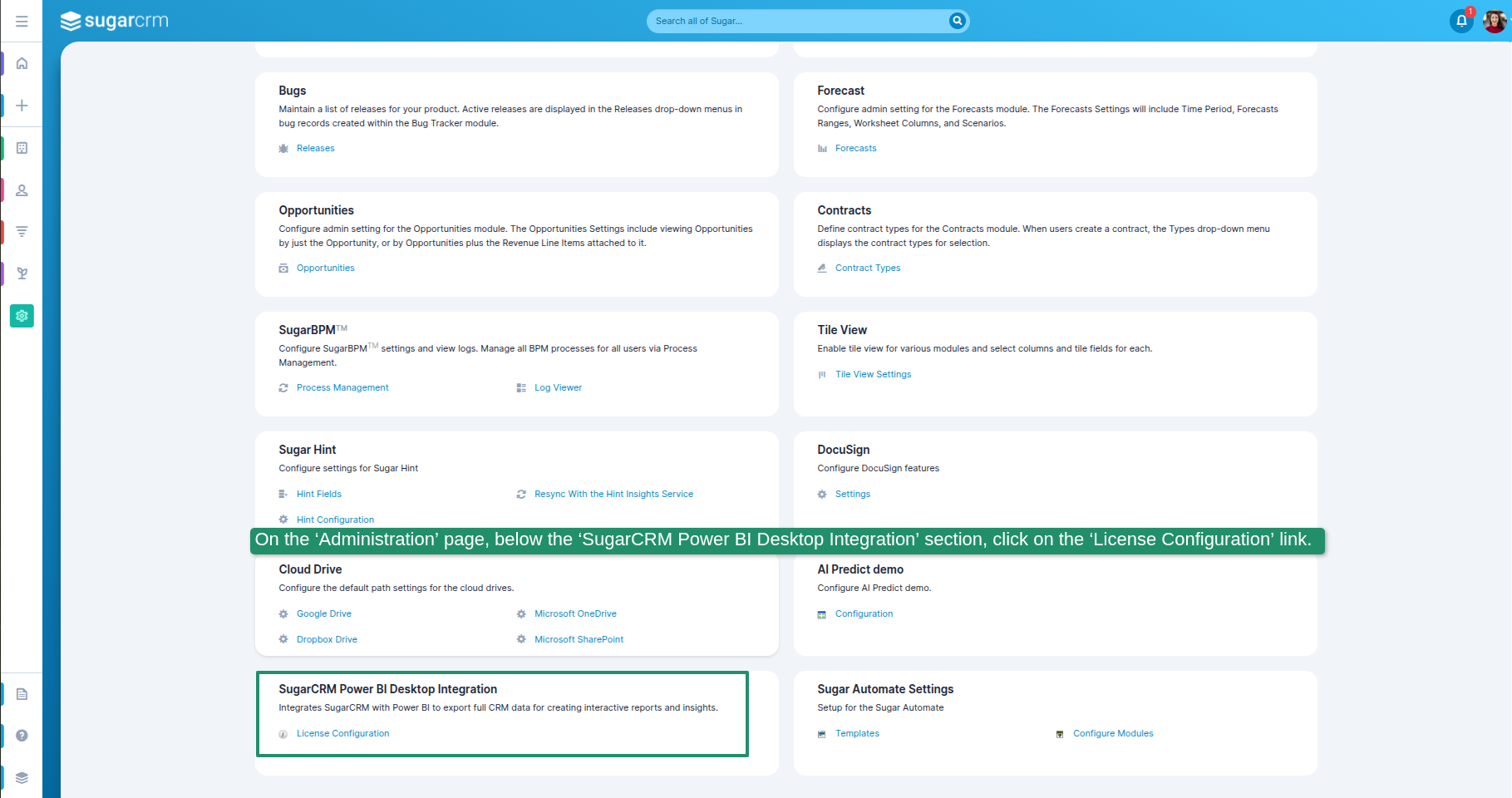
4. On the ‘Administration’ page, below the ‘SugarCRM Power BI Desktop Integration’ section, click on the ‘License Configuration’ link.
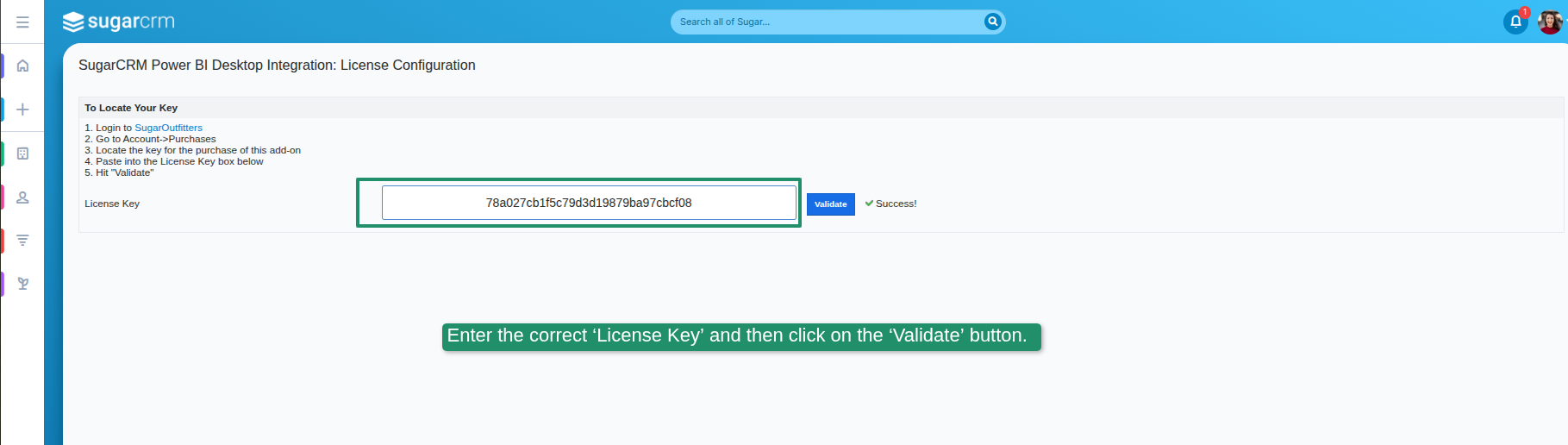
5. Enter the correct ‘License Key’ and then click on the ‘Validate’ button.
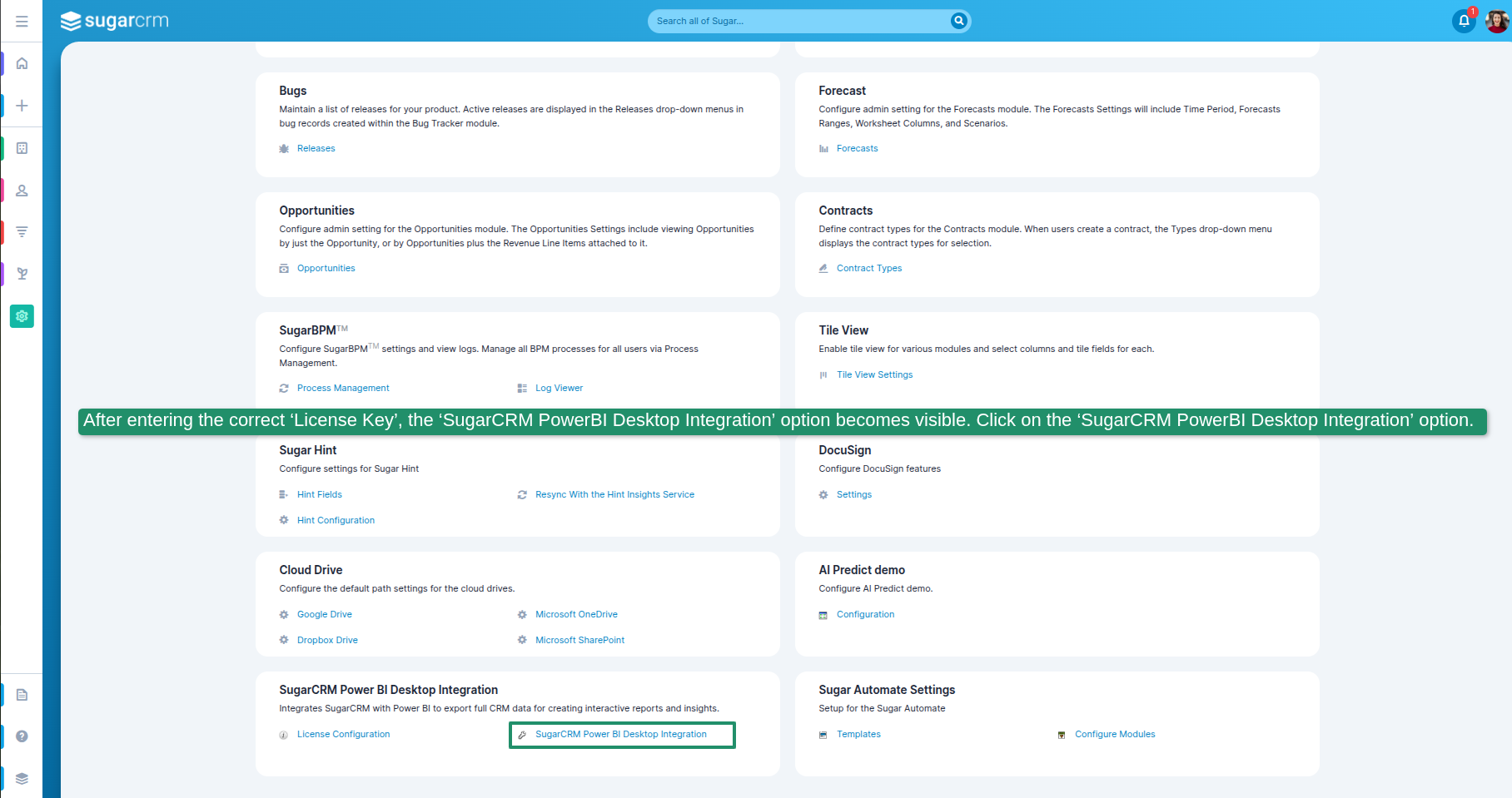
6. After entering the correct ‘License Key’, the ‘SugarCRM PowerBI Desktop Integration’ option becomes visible. Click on the ‘SugarCRM PowerBI Desktop Integration’ option.
 Saving Comment...